
CLI
Requirements
Section titled “Requirements”Either runtime works everywhere below — pick whichever you already have installed.
Install (recommended)
Section titled “Install (recommended)”One-liner installers that install Bun if needed, then install the latest hoomanjs globally:
curl -fsSL https://raw.githubusercontent.com/vaibhavpandeyvpz/hooman/main/install.sh | bashirm https://raw.githubusercontent.com/vaibhavpandeyvpz/hooman/main/install.ps1 | iexnpm i -g hoomanjsbun add -g hoomanjsThen run:
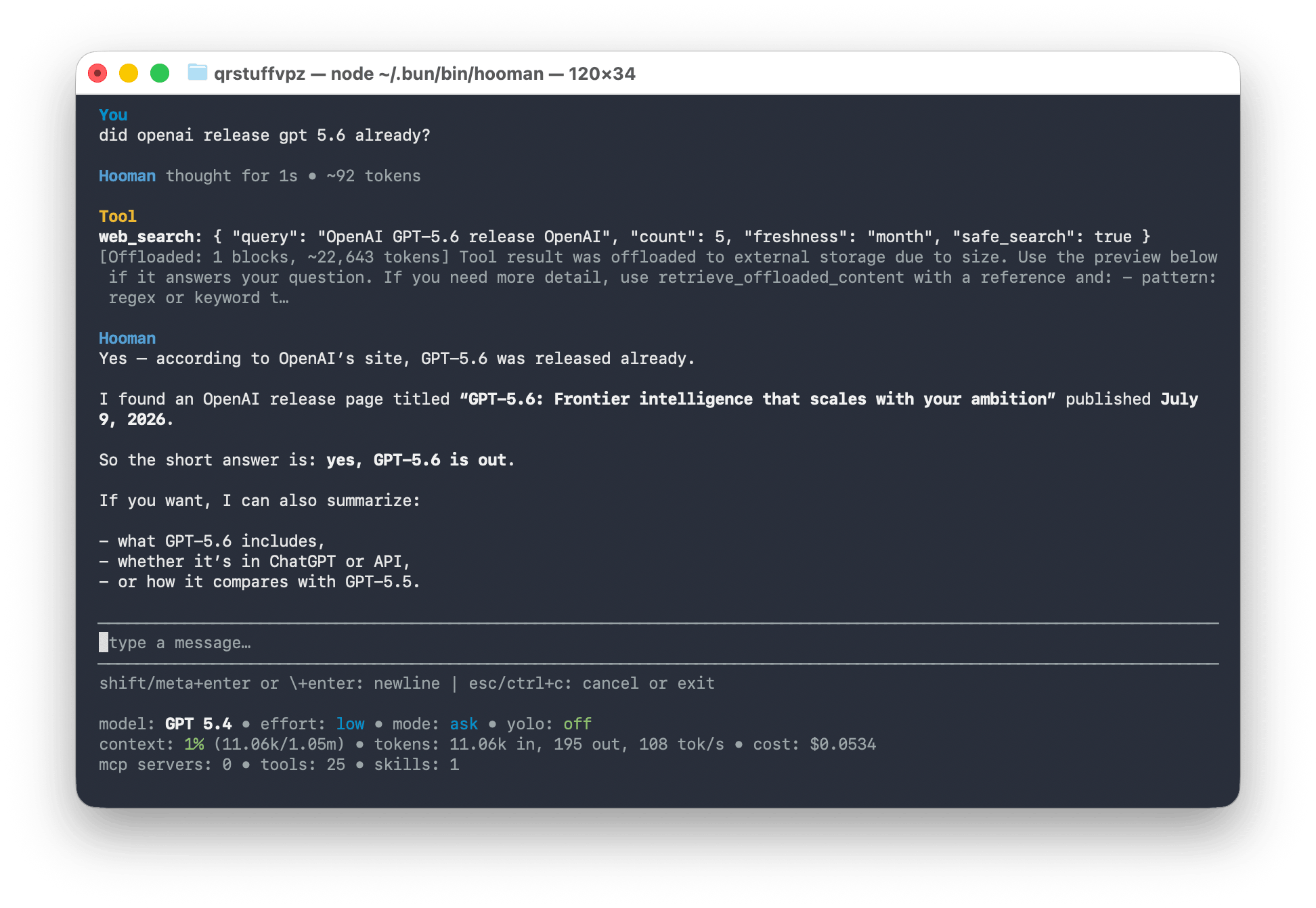
hoomanRun without installing
Section titled “Run without installing”The fastest way to try Hooman without a global install:
npx hoomanjsOr with Bun:
bunx hoomanjsBoth download hoomanjs on first use and cache it for next time — no separate install step, and nothing left behind if you don’t keep using it.
First run
Section titled “First run”- Run
hooman(ornpx hoomanjs). If~/.hooman/config.jsonis missing, Hooman opens a setup wizard first:- pick an inference provider and enter credentials (validated against the provider)
- pick a search provider (DuckDuckGo needs no key; others are validated with a test search)
- write
config.jsonwith the available chat LLMs for that provider
- Chat starts automatically after setup. Re-run setup anytime with
hooman setup. - Use
/configinside chat (orhooman config) for advanced settings — MCP, skills, prompts, tools, and more. - Use
hooman exec "your prompt"for one-off tasks once you’re set up.
The setup wizard defaults to local llama.cpp (Gemma 4 E2B / Qwen3.5 2B on Q4_K_M) so you can start without an API key; on Apple Silicon you can choose MLX instead. Hosted providers (Anthropic, OpenAI, Google, …) are available in the same flow. The first local model you use downloads from the Hugging Face Hub on demand with a live progress bar. See Models for the full list.
Run from source
Section titled “Run from source”Prefer to build from the repository instead of the published package:
git clone https://github.com/vaibhavpandeyvpz/hooman.gitcd hoomannpm installnpm run dev -- --helpOr build and link the CLI locally:
npm run buildnpm linkhooman --helpNext steps
Section titled “Next steps”- CLI reference — every command, flag, and in-chat slash command.
- Configuration —
~/.hoomanlayout and repo-local overlays. - Models — connect Anthropic, OpenAI, Google, Ollama, and more.
- VS Code quickstart — prefer a chat panel in your editor instead?