
CLI
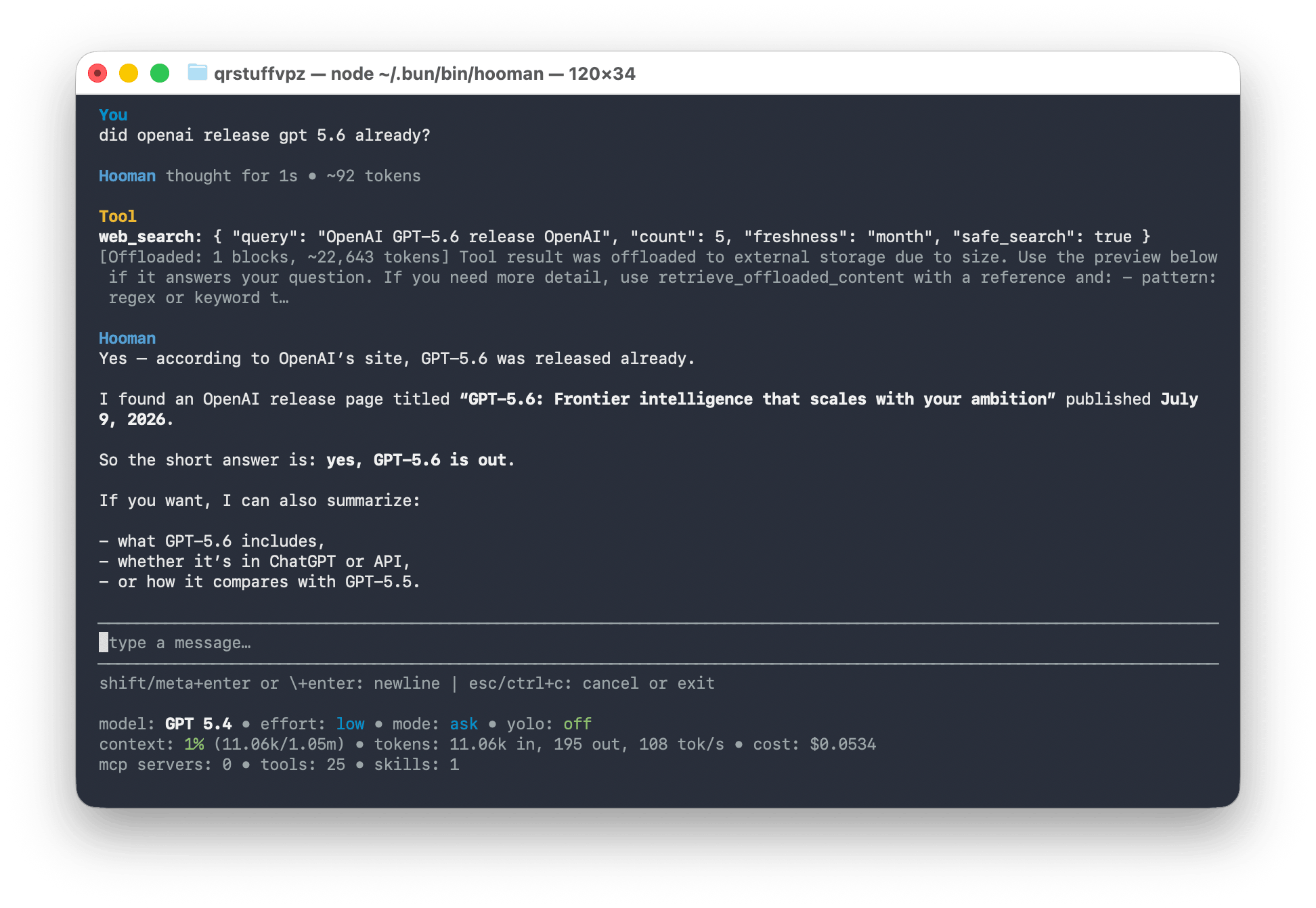
Hooman ships as a single hooman binary with five surfaces on the same agent core: first-run setup, interactive chat, one-shot exec, channel-driven daemon, and an acp agent for editor clients. Local-first, BYOK, and MIT licensed — the same runtime as VS Code and Design mode.
hooman setup
Section titled “hooman setup”Create ~/.hooman/config.json with a guided wizard (inference provider + search). Credentials are validated before write: the provider is checked by listing models, and search with a one-result probe (DuckDuckGo needs no key). The wizard writes all available chat LLMs for the chosen provider (preferred model first as default).
hooman setupRunning hooman with no arguments also opens setup when config.json is missing, then starts chat. Re-run hooman setup anytime to recreate home config (it overwrites ~/.hooman/config.json). For day-to-day edits without rewriting the file from scratch, use hooman config or chat /config.
hooman chat
Section titled “hooman chat”Start an interactive stateful chat session.
hooman# if ~/.hooman/config.json exists — equivalent to:hooman chatOptional initial prompt:
hooman chat "Help me prioritize the next task"Shared agent flags (also on exec; daemon accepts all but --continue, since it owns many ACP sessions rather than one):
hooman chat --session my-sessionhooman chat --continue # or -C — resume latest project sessionhooman chat --mode ask # or -mhooman chat --model "Gemma 4 E2B (Q4_K_M)"hooman chat --effort medium # off | minimal | low | medium | highhooman chat --yolo # auto-approve tool callsThe status bar under the composer has three rows:
- model / effort / mode / yolo
- a usage row —
context: N% (used/size), the latest request’stokens(in/cin/out), and cumulative sessioncost: $…— each segment only appears once it has data (context and cost require resolvable LLM metadata) - an mcp/tools/skills row, with a live
elapsedtimer while a turn runs
Chat commands
Section titled “Chat commands”Type / inside a chat session to discover slash commands:
| Command | Purpose |
|---|---|
/model |
Pick or set the chat model for this session. |
/effort |
Pick or set reasoning effort (off, minimal, low, medium, high); Shift+Tab cycles it. |
/mode |
Switch session mode (agent, ask, plan, design); see Modes. |
/yolo |
Toggle auto-approve of tool calls (on / off). |
/init |
Generate or refresh AGENTS.md for the current project. |
/compact |
Compact the conversation history now and persist the result. |
/new |
Start a fresh chat session. |
/sessions |
Browse and resume saved sessions. |
/tasks |
List active background shell jobs and stop one. |
/config |
Launch the configuration workflow. |
While background jobs are running, the composer chrome also shows a compact count (N background jobs · /tasks to stop).
hooman exec
Section titled “hooman exec”Run a single prompt once, without an interactive session. Accepts the same shared flags as chat (--session, --continue, --mode, --effort, --model, --yolo).
hooman exec "Summarize the current repository"hooman exec "What changed?" --session my-sessionhooman exec "Map the architecture" --mode ask --effort lowhooman exec "Summarize this repo" --yolohooman daemon
Section titled “hooman daemon”Run a long-lived daemon that always subscribes to MCP servers advertising the hooman/channel capability, and multiplexes every distinct conversation over one supervised ACP agent process (hooman acp) instead of one shared agent. Each channel’s hooman/session (falling back to --session, then a stable server:channel key) maps to its own ACP session, so unrelated conversations run and get approved concurrently while messages for the same conversation stay strictly ordered. See MCP Channels for the full automation model.
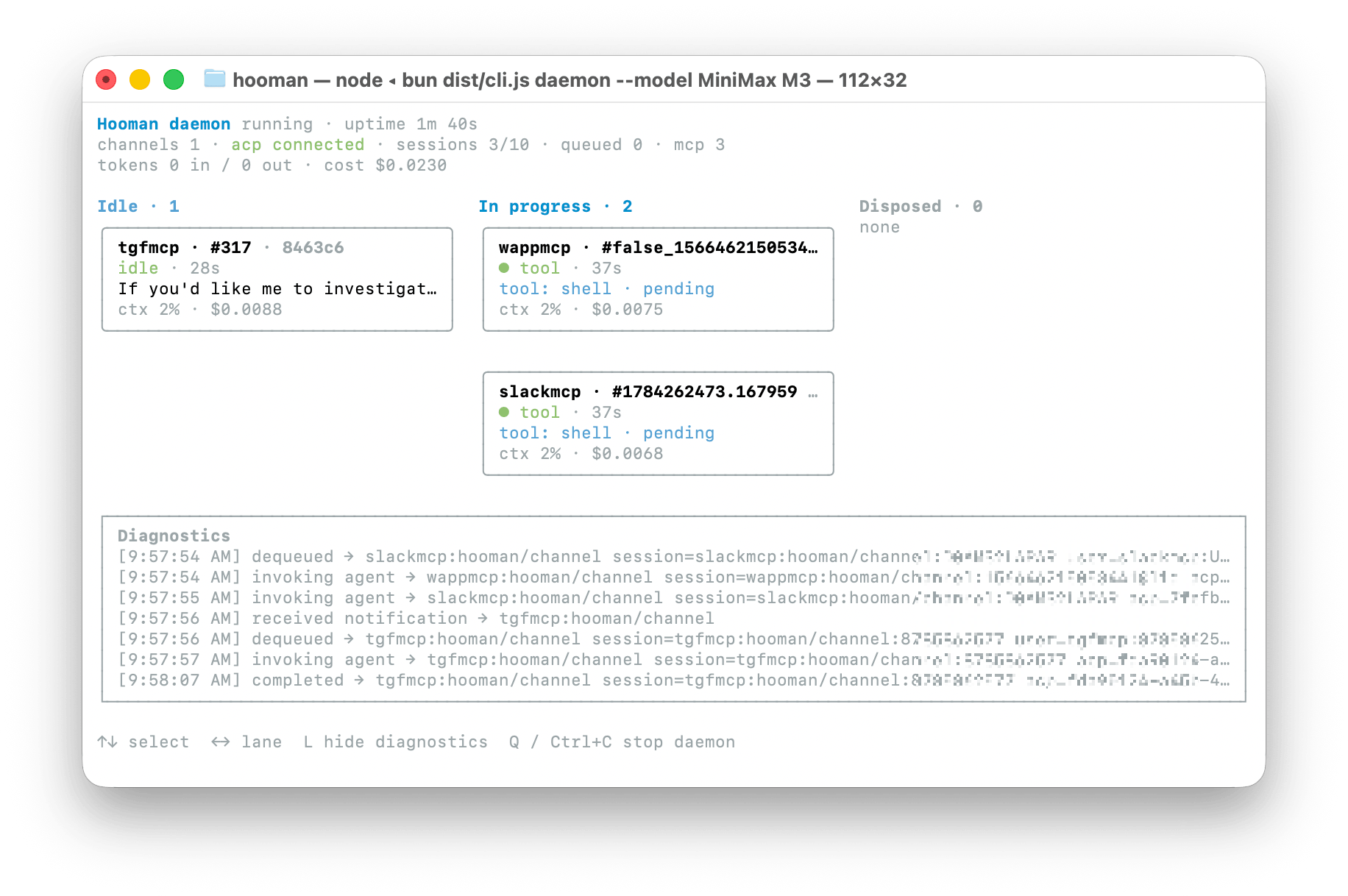
When stdout is an interactive terminal, hooman daemon renders a live kanban-style dashboard instead of a scrolling log: Idle (sessions holding a slot with no active turn), In progress (queued, waiting for a slot, setting up, generating, running a tool, or awaiting approval), and Disposed (the 10 most recently closed sessions, with a reason — idle timeout, pool pressure, shutdown, or an ACP child restart). Each card shows the conversation identity, current activity, a truncated prompt/output preview, and live token/context/cost usage. The header tracks channel/MCP/ACP-child health, pool occupancy, and aggregate usage. Use ←/→ to switch lanes on narrow terminals, l to toggle a diagnostics drawer, and q or Ctrl+C to stop the daemon gracefully. Pass --no-dashboard, or run with stdout redirected/piped (services, CI, launchd/systemd), to keep the original plain-text log output instead.
Accepts -s/--session (fallback conversation id, not --continue — daemon owns many ACP sessions, so “latest session” has no single meaning), -m/--mode, --effort, --model, --yolo, --session-idle <seconds>, --max-active-sessions <count>, --mcp-proxy-port <port>, --debug for raw notification payloads, and --no-dashboard to force plain-log output in a TTY.
hooman daemonhooman daemon --session my-daemonhooman daemon --mode agent --model "Claude Sonnet" --effort mediumhooman daemon --yolohooman daemon --session-idle 600 --max-active-sessions 16hooman daemon --debughooman daemon --no-dashboardSession mode
Section titled “Session mode”exec, chat, and daemon accept -m / --mode. Full details for each mode:
- Agent (default) — full tool surface including shell
- Plan — plan document + checklist; leave only with approval
- Ask — read-oriented Q&A and exploration
- Design — HTML artifacts, preview, and export to PDF / PowerPoint-ready
.pptx/ Figma-ready.fig/.deck/ Sketch-ready.sketch
See the Modes overview. In chat, /mode switches between them. ACP and the VS Code extension expose the same values; Yolo is a separate boolean (CLI /yolo / --yolo, ACP yolo) and is not a mode.
--model selects a named entry from config.json llms (and persists it as the default when that entry exists in the home config). --effort sets reasoning effort on the active provider (off, minimal, low, medium, high), matching chat /effort.
hooman sessions
Section titled “hooman sessions”List and inspect saved CLI sessions for the current project.
hooman sessions listhooman config
Section titled “hooman config”Open the interactive configuration UI (same workflow as chat /config). Pass -d / --debug to dump the merged runtime config.json for the current working directory instead (credential-like values redacted).
hooman confighooman config --debugIt currently lets you:
- manage general settings such as name, prompts, tools, compaction, and global reasoning display
- manage models and providers with field-by-field editors, including per-LLM metadata overrides
- choose a search provider and set its API key (DuckDuckGo needs no key)
- toggle bundled harness prompts (
behaviour,communication,execution,guardrails) - edit
instructions.mdin your$VISUAL/$EDITOR(cross-platform fallback included) - add, edit, and delete MCP servers with field-by-field editors and confirmation
- search, install, refresh, and remove skills
From inside a chat session, /config launches the same UI on the alternate screen buffer and restores the chat on exit (re-bootstrapping so config changes apply).
Feature flags
Section titled “Feature flags”Runtime tool and prompt switches, controlled from config.json (see Configuration):
search.enabled,search.provider(brave,duckduckgo,exa,firecrawl,litellm,serper, ortavily), plus per-provider options — see Searchprompts.behaviour,prompts.communication,prompts.execution,prompts.guardrails— see Promptstools.todo.enabled,tools.fetch.enabled,tools.filesystem.enabled,tools.shell.enabled,tools.sleep.enabled,tools.browser.enabled,tools.subagents.enabled— see Tools
MCP auth commands
Section titled “MCP auth commands”Remote MCP OAuth helpers, independent of hooman config:
hooman mcp auth <server> # OAuth login for a configured MCP serverhooman mcp logout <server> # Clear stored OAuth credentialshooman mcp logout <server> --scope all # Scope: all, client, tokens, discoveryhooman mcp status # Show MCP server auth statusSee MCP OAuth for the full flow.